Cylinder command in Subdivision Modeling


In the Subdivision Modeling environment, the Home tab→Shapes group→Cylinder command  creates a cylindrical shape with smooth or hard edges as the basis for your subdivision feature.
Specifying creation methods
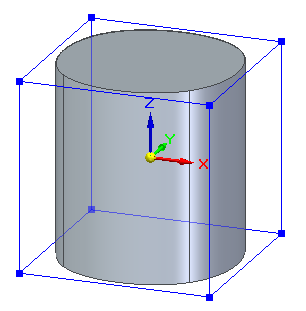
The default creation method is At Origin, with the Smooth edges option  selected, as shown in the following example.
You can change the default initial dimensions and settings on the command bar,
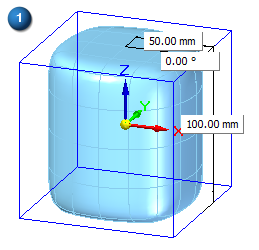
And then right-click to accept and finish the basic shape.
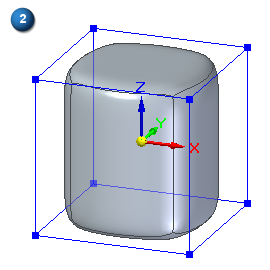
You can change the creation method to By 3 Points using the Selection Type list on the command bar. With this method, you also can use the Symmetric option  on the Cylinder command bar.
Specifying initial segments (faces)
For all placement options, you can use the command bar to set the number of cage segments on the side and the base. Cage segments define the number of edges that you can manipulate, with more faces providing more detail.
From left to right:
Side segments=3, Base segments=5
Side segments=1, Base segments=8
Side segments=2, Base segments=12
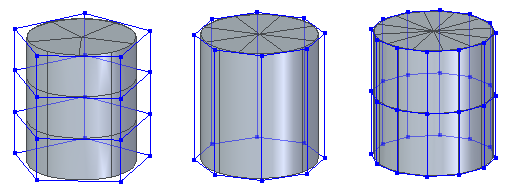
You can control the size and color of vertices and edges using the Home tab→Style group→Cage Style command  .
.
Specifying smooth or hard edges in the initial shape
The default cylinder-like shape is displayed with smooth edges.
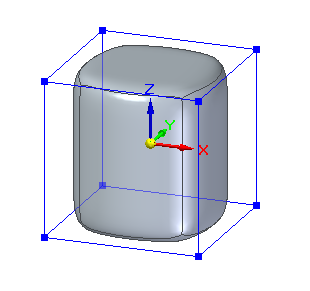
To create a shape with hard edges, turn off the Smooth option  on the command bar. The resulting shape is a traditional cylinder primitive.
© 2021 UDS