Moving cage elements


Moving cage elements is the principal method of shaping a subdivision model. As you move elements around the model, the body is redrawn with a new shape.
Selecting cage elements to move
Most move operations are done using the steering wheel, which is displayed when you select an element on the body cage. In Subdivision Modeling especially, filters help you to quickly select only the desired elements of the cage when you click or when you click+drag a fence around the cage elements.
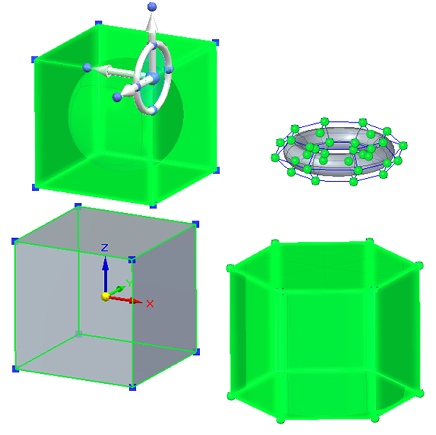
You set the selection filters using the standard QY CAD selection techniques:
-
On the command ribbon, use the Select tool options to prioritize the selection of faces, edges, or vertices.
-
You also can use QuickPick to select individual planar faces, vertices, and edges.
-
Use Ctrl+Spacebar to cycle through the selection filters.

Move with the Tip option
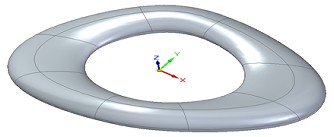
The default mode—the Tip option—does not create new faces.
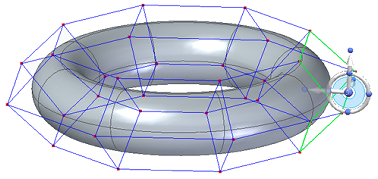
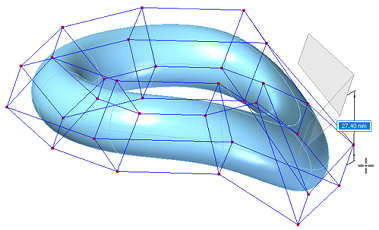
Original elements are moved, changing existing faces.
Move with the Lift option
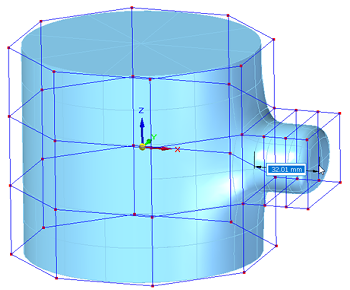
The Lift option adds faces to the model, leaving existing faces in their current positions and orientations as you move the selected elements. In this case, the Segments box on the command bar defines how many faces (segments) to add.

You can use the Lift option only when the select set contains faces.
Move using Quick Move
The normal move command happens when you click one or more elements of the body cage. The steering wheel is displayed for you to move the selected elements.
Instead of starting a fence selection or selecting a cage element to move with the steering wheel, you can click+drag a vertex using Quick Move.
For more information, see Move using Quick Move.
© 2021 UDS