Working with subdivision features


Editing subdivision features
You can disconnect the subdivision feature from its parent cage, so it cannot be edited as a subdivision feature anymore.
-
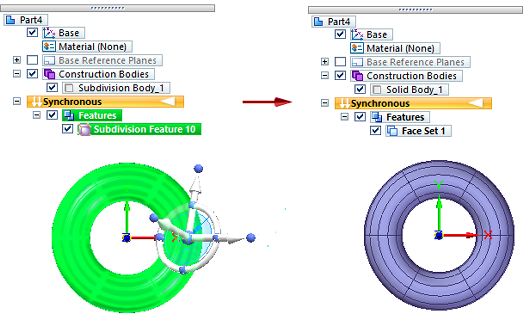
In Synchronous mode, right-click the subdivision feature name in PathFinder, and select the Break command on its shortcut menu. For more information, see Break a feature into faces.
-
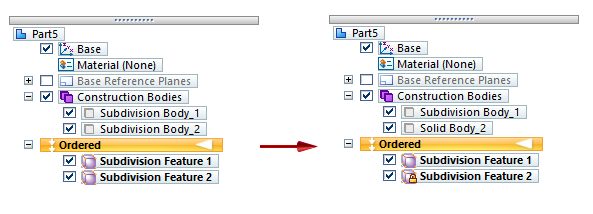
In Ordered mode, use the Drop Parents shortcut command. For information, see Drop the parents on a feature.
In PathFinder, the name of the subdivision body changes to a regular body name to reflect the link to the cage is disconnected.
In Ordered mode, this detached body acts like any other imported body or Part Copy that had its link to the parent part broken. The feature name does not change but its icon updates to show the padlock symbol, indicating the feature link to the cage was broken.
Copying subdivision features
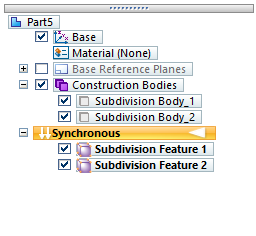
You can copy and paste subdivision features outside the Subdivision Modeling environment, in both Ordered and Synchronous mode. The entire feature is copied as a new Subdivision Feature in PathFinder.
Copying Subdivision Feature 1 copies the body and the cage, and pastes it as a new Subdivision Feature 2, which can be edited.
In Synchronous mode, the steering wheel is displayed to allow it to be moved. In Ordered mode, the body can be moved with direct edit commands, if needed.
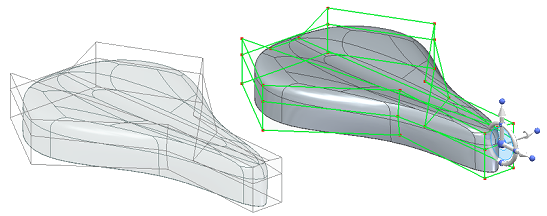
You can store commonly used subdivision shapes in the Feature Library to make them readily available. When adding a subdivision shape to another model, its location can be defined in Synchronous mode, but the feature is placed in the original location automatically in Ordered mode.
© 2021 UDS