Share documents from a folder location or .zip file


-
You can share documents using the Pack and Go command as follows.
-
In QY CAD:
-
Open the document you want to share.
-
Choose Application menu→Share→Pack and Go
 . Note:
The Pack and Go command is available only when you have a document open.
-
-
In Design Manager:
-
Open the document you want to share.
-
In the document list, click the Current Filename cell for the document of interest.
-
Choose Home tab→Assistant group→Pack and Go
 . Note:
-
If you have several documents open, Design Manager displays the Pack and Go dialog box for the active document.
-
If you save documents that have a status of Released
 , Design Manager saves the files with a status of Available
  .
.
-
-
Note:In the Pack and Go dialog box, clicking any document name displays a graphical preview of the document.
-
-
(Optional) Specify what additional documents you want to include, using the Include Drawings and Include Simulation Results check boxes.
If you select either of these options, the system copies all related drawings or simulations to the folder location or the zip file, as you specify.
-
Specify the structure of the saved documents using the following check boxes:
-
Copy all files to single folder
Use this option if you want to copy all related files from their various locations to a single location, as shown in the New Location column.
-
Maintain folder structure
Use this option if you want to replicate the file locations shown in the Current Location column to the location shown in the New Location column. The system creates subfolders in the new location, similar to where they reside in the current location.
-
-
Specify if you want to display the documents in a list view or BOM view, using the No levels or BOM view check boxes.
-
Specify where you want to save the documents, using the Save to folder or Save to zip file check boxes.
-
Click Save.
Example: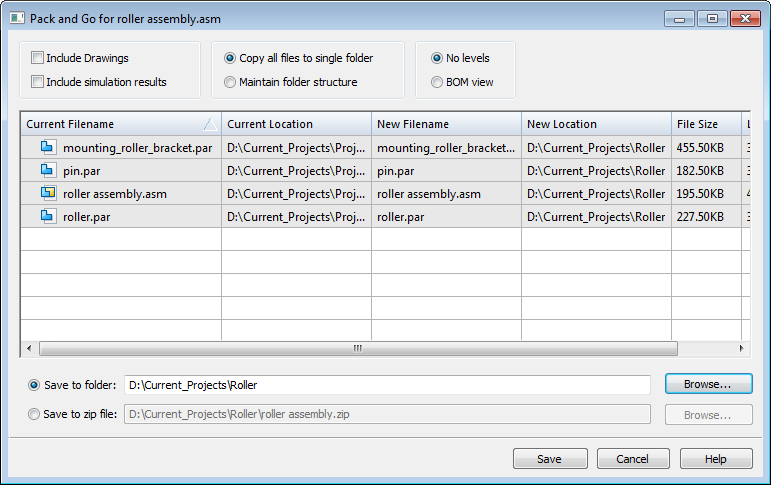
The system displays a Windows Explorer window with the location where you saved the files.
Note:If you are not a QY CAD data management user, and selected the Include Drawings option, the system displays the Where Used dialog box. In this dialog box, define the search scope. The system includes in the document package all drawings found at the location defined in the search scope.
Using the Pack and Go command, you can package documents so you can share them from a folder location or .zip file.
Pack and Go is on by default, but you can use SEAdmin.exe to disable it. For more information, see the QY CAD Help topic Disable Pack and Go.
© 2021 UDS