Identify parts in a parts list


When you edit a parts list directly, an orange edit frame appears at the top-left corner of the table. You can use the commands on the shortcut menu to identify and locate parts in the drawing view that match the parts list.
Show thumbnails of parts in the parts list
-
Double-click a parts list.
-
Right-click this button
 to display the shortcut menu, and then choose Thumbnails.
 -
Move your cursor down the rows in the parts list.
An image of each item is displayed in a thumbnail window.
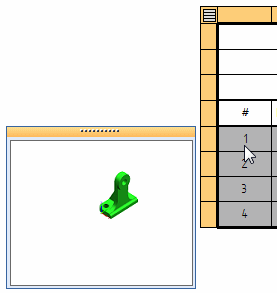
If an image of the model is not available, such as when the draft document is opened using the option, Inactivate drawing views for review, then the thumbnail window is blank.
Highlight parts in the assembly drawing view
-
Double-click a parts list.
-
Right-click this button
to display the shortcut menu, and then choose Highlight. -
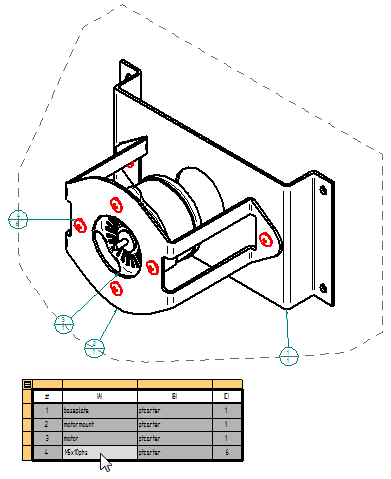
Click a cell or row in the parts list.
The corresponding part is highlighted in the drawing view.
| Exclude parts from an exploded parts list | Example: Show custom occurrence properties in a parts list |
© 2021 UDS