Loads directional steering wheel


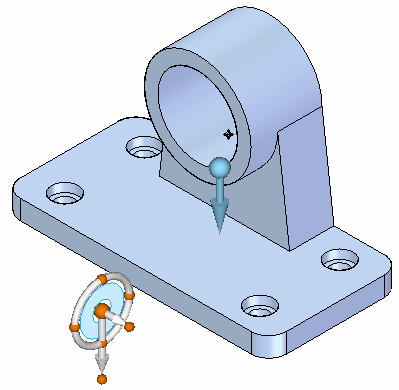
In QY CAD Simulation and Generative Design, the steering wheel is a handle that you can use to define the direction in which a load is applied.
When you click a model face while placing a load, the load direction vector is displayed.
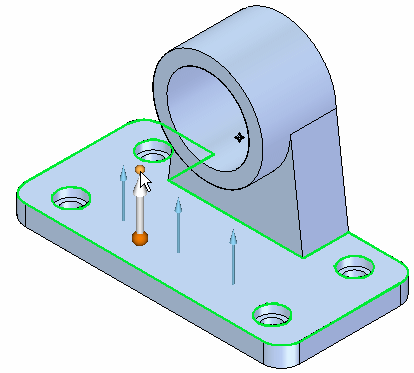
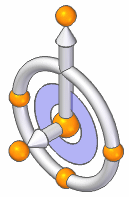
When you move your cursor to the arrowhead, the primary bearing appears; click this bearing to display the 3D steering wheel handle.
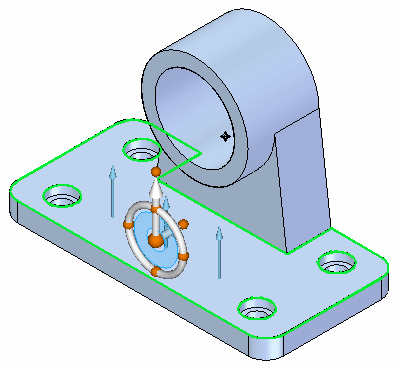
When the steering wheel is displayed, you can:
-
Click the steering wheel torus to redefine the force direction.
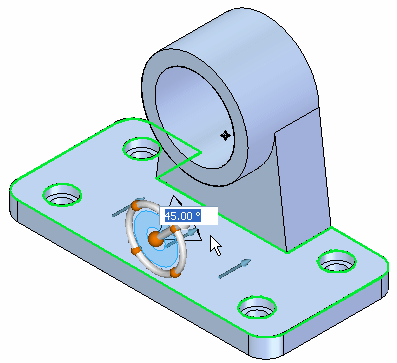
-
Reorient the long axis of the steering wheel to define the direction of gravity on a part.
-
Use the steering wheel in a rotational sense to define the direction of a torque load.
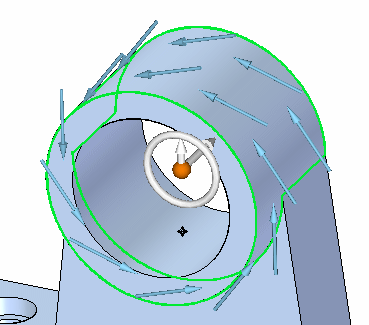
Orienting the steering wheel in QY CAD Simulation
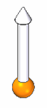
The primary axis (long axis) defines load direction:
-
On the directional vector:
-
On the steering wheel (1).
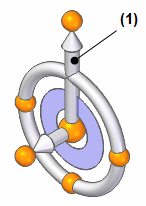
To reorient the primary axis so that it points in the direction you want, you can use the following features on the steering wheel:
-
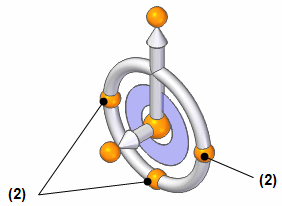
You can click the cardinal points (2) on the steering wheel to automatically reorient the long axis by 90 degree increments in the same plane.
-
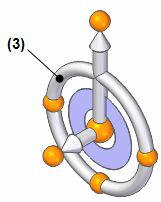
You can click the torus (3) to rotate the long axis to any point in the same plane.
-
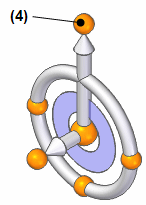
You can click the bearing (4) to reorient the long axis to a point out of the plane.
If you want to relocate the steering wheel on the model, you can use either of these techniques:
-
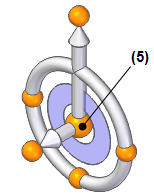
You can click the steering wheel origin (5) to drag the tool anywhere on the model. When you click again, it is fixed to that point, face, or edge.
-
You can click the short axis (6) on the steering wheel to move it in that direction.
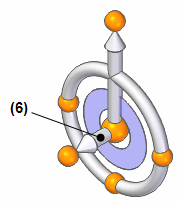
Steering wheel reference table
The following illustration and table concisely show the name for the components of the full 3D steering wheel, and explain how you can use them to modify a load.
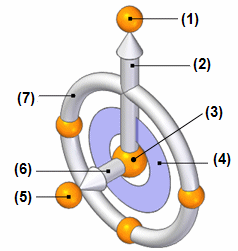
Shaded cells in the following table indicate operations which reorient the primary axis (long axis), and thus change the load direction.
| LMB+click Click+drag | LMB+Shift+click or drag | LMB+Ctrl+click or drag | ||
| Primary Bearing (1) | Aligns primary axis by a point (snaps to secondary axis) | Rotates handle about secondary axis | Rotates handle about axis normal to primary and secondary axes | |
| Primary Axis (2) | Moves handle along primary axis | |||
| Origin (3) | Positions handle on a point, edge, or face | Positions handle (position only) | Positions handle to snap to a face (secondary axis normal) | |
| Plane (4) | Switches from plane normal to primary axis to secondary axis (Shift+click) | Move handle in plane (Shift+drag); | ||
| Secondary Bearing (5) | Aligns secondary axis to a point. | |||
| Secondary Axis (6) | Moves handle along secondary axis | |||
| Torus (7) | Rotates handle about the primary axis | |||
© 2021 UDS