Identifying areas of poor mesh quality


To identify the areas where mesh sizing is needed and to update the mesh after sizing is applied, you can use the following commands. These are available when an object is selected under the Mesh node on the Simulation pane.
Using the Show Poor Quality command 
The Show Poor Quality shortcut command is available only when the quality of the mesh that was generated is poor and this status icon is displayed:  .
.
In the graphics window, good quality mesh elements are displayed in translucent white. Poor quality mesh elements are displayed in solid dark magenta. You can use the Show Poor Quality command to select and zoom to each of the poor quality nodes.
-
Right-click the mesh node where this status icon is displayed
, and choose Show Poor Quality. 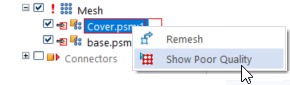
-
On the command bar, select a node ID from the Element ID list, and then click Fit to zoom to the area of poor quality.
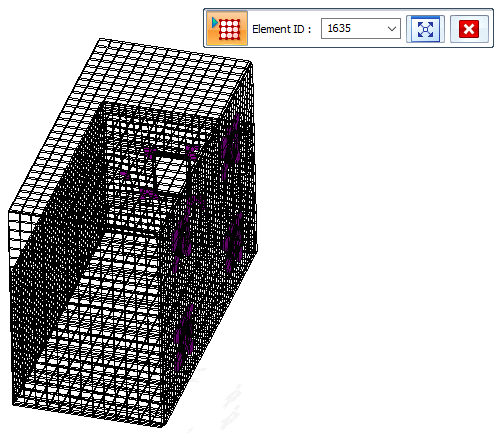
When you have located the mesh elements that need to be improved, you can select the Cancel button on the command bar. The next step is to refine the mesh. For more information, see Mesh sizing.
The Show Poor Quality command is not available for tetrahedral meshes if you select the Generate only Surface results check box in the Create Study dialog box, under Results options in studies.
Using the Remesh command 
The Remesh command is available on the shortcut menu of individual parts in an assembly. You can use the Remesh command for:
-
Parts that failed to mesh the first time.
-
Parts which have a poor quality mesh.
After you apply mesh sizing, or simplify the geometry, or change the meshing options, you can use the Remesh command to update the mesh just for the selected part, rather than all of the bodies in the study.
You can delete an existing mesh using the Simulation pane→Mesh node→Delete Mesh command in a part, sheet metal, or assembly model, and using the Delete All Mesh command in an assembly. Deleting the mesh enables you to remesh using the same parameters, without producing an error.
In a part or sheet metal file, use the Mesh command to remesh the model after making changes to the part.
© 2021 UDS