3D Curve command


Use the 3D Sketching tab→3D Draw group→3D Curve command  to create a 3D curve across different sketch planes.
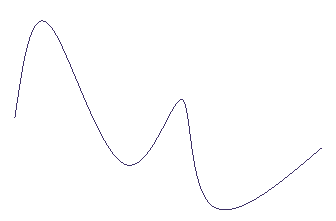
The 3D Curve command is available in all 3D Sketch environments and is supported in assembly, part, and sheet metal.
The 3D Curve command supports most of the functionality available with the Keypoint Curve command, except for:
-
Curvature continuous constraint
-
Constraint direction for fixed length
The command is supported in most commands that need a 3D curve as input, such as Swept Surface, Bluesurf, Tube, and Frame.
Creating 3D curves
As you use the 3D Curve command to place a sketch, multiple keypoints are created.
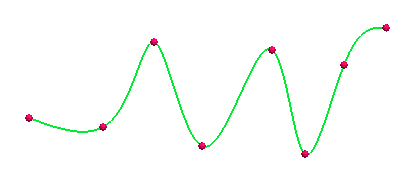
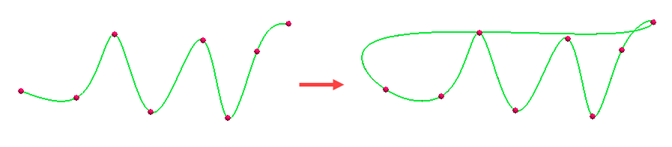
You can use the Close Curve button  on the command bar to open or close the curve.
Modifying 3D curves
After creating a 3D curve, you can click the curve
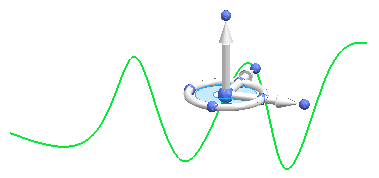
and use the steering wheel to move
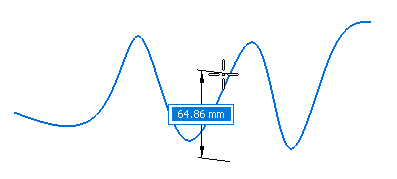
or rotate the curve.
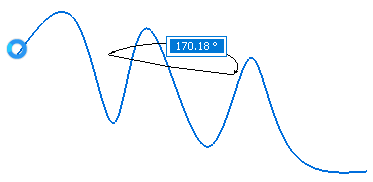
You can hold the Alt key and click to add or remove points to the curve.

As you add or remove points, the shape of the curve changes.

Applying dimension to 3D curves
Use the Smart Dimension command to apply a smart dimension to a 3D curve. By default, smart dimension places the curve length.
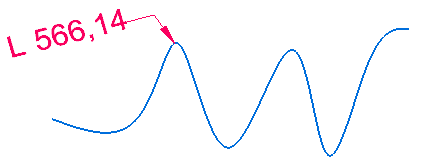
You can type a value to modify the curve length.
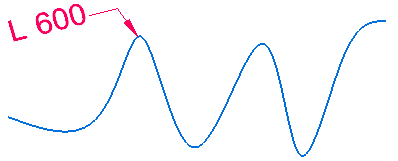
Use the Distance Between command to create a linear distance dimension between the end points, as well as two keypoints, of the curve.
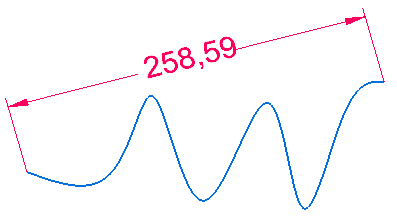
You can type a value to modify the curve length.
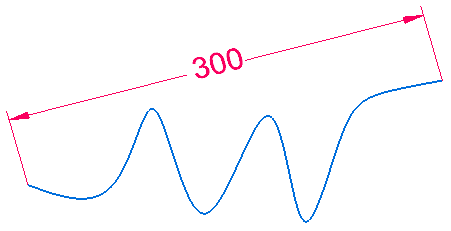
Placing the dimension between two points on the curve keeps the curve length the same.
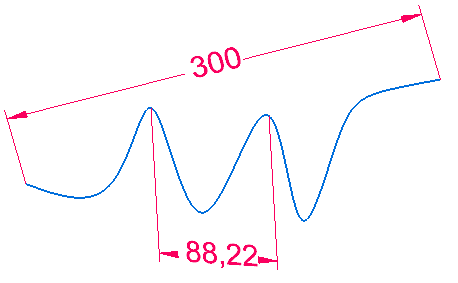
Changing the dimension between the two points changes only the distance between those points and does not change the overall distance of the curve.
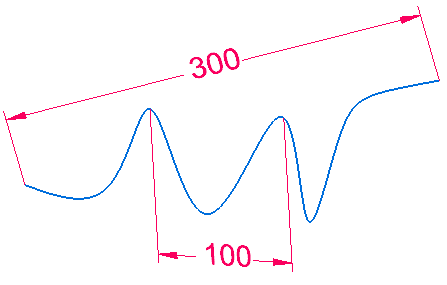
You can edit these dimensions if no other relationships are applied.
Trimming or splitting 3D curves
You can trim and split 3D curves.
Trimming the curve highlights the trim area where the curve intersects another sketch.
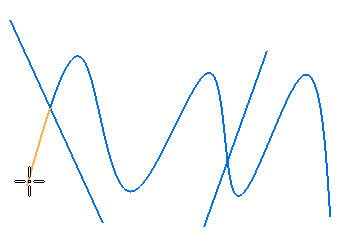
You can then trim the highlighted area.
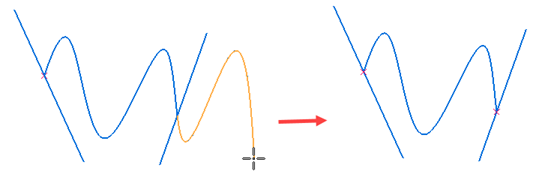
With the Split command, you can place a point where you want to split the curve.
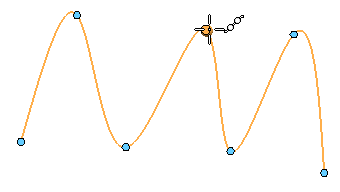
The curve splits into two sections at the point.
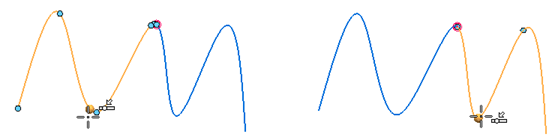
Using 3D curves in downstream features
You can use 3D curves in downstream features.
For example, you can use the 3D curve to create an extruded surface.
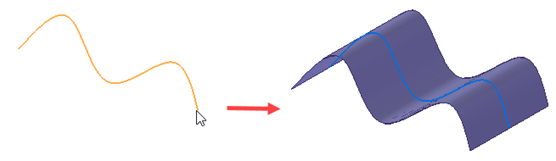
In the ordered environment, you can dynamically edit the 3D curve by changing keypoints of the curve. As you change the keypoints, the shape of the curve changes.
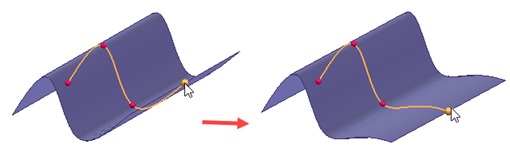
In synchronous, after you use a 3D and 2D sketch to create a feature, the sketch is placed in the Used Sketches collector and cannot be changed. Therefore, any features created from the sketch are not be updated when you update the curve in synchronous. If you need to update the feature, you must create a new surface of the edited curve.
© 2021 UDS