Using the tabbed document interface


A tabbed document interface in all environments lets you view and switch easily between all of your open document windows. Two different context menus plus tab controls are available.
-
You can drag the tabs to change the display order of documents in the tab list bar.
-
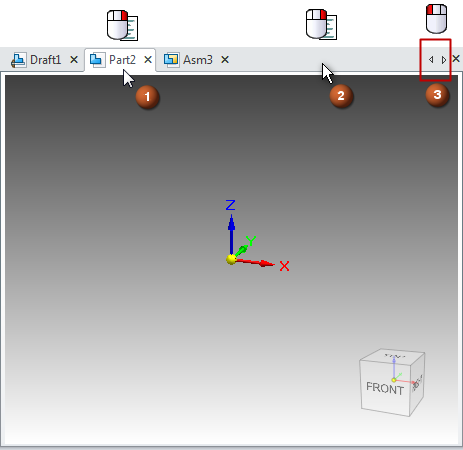
When you right-click a document tab (1), you can choose from commands for creating new windows and closing document windows.
For more information, see Close open documents.
The following commands are also available:
-
Open Containing Folder—Opens the directory of the currently selected file in Windows Explorer.
-
Copy Full Path—Copies the path of a selected file to the clipboard so that you can quickly navigate to the parent directory.
-
-
When you right-click the tab list bar (2), you can choose commands for arranging, collapsing, and restoring windows.
For more information, see Arrange open documents, Collapse all windows, and Restore all windows.
-
When you have many documents open, or when you have the same document open in multiple windows, you can:
-
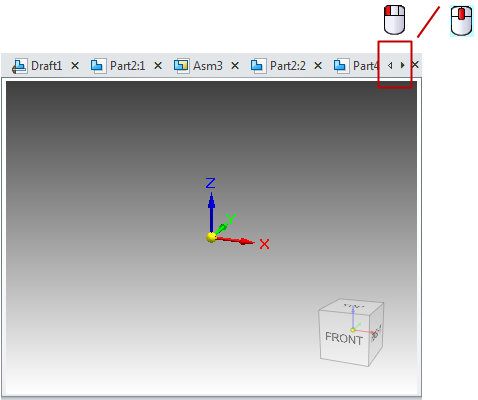
Display the next and previous documents using the right and left arrow controls shown in the following image.
-
Scroll through the open document tabs using the mouse wheel
 .
.
To learn how to do this, see Switch to another open document.
-
© 2021 UDS