 Learn QY CAD


QY CAD user assistance
-
Open QY CAD Help and Training by clicking the Help command
 at top-right in the application window.
 Search on phrases or keywords to find specific content in Support Center. For more information, see Find QY CAD content in Support Center.
-
To get help for a specific command, hover over or select a command and press F1.
-
Tutorials and self-paced courses are available in web help. The corresponding data sets are delivered with QY CAD.
-
The Application menu→About QY CAD command displays the software version and license information.
-
Use Command Finder to locate commands in the QY CAD interface.

For more information, see Find a command with Command Finder.
-
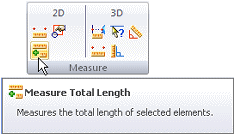
Tooltips help you identify a user interface element. You can display images or videos, or just plain text.
-
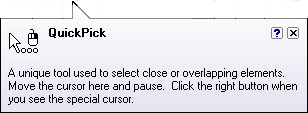
Command tips provide contextual assistance as you work with QY CAD.
Tutorials (targeted workflow learning activities)
Task-specific tutorials help you get the most from QY CAD. These hands-on activities are a quick way to learn the basics of modeling. Without a lot of detailed explanations, tutorials guide you through common workflows, so you will feel more confident exploring the product and experimenting on your own.
-
Start with the basic tutorials: Try these QY CAD tutorials first. Using a micrometer as the base part, these four tutorials quickly familiarize you with part modeling, building an assembly, creating a drawing, and using QY CAD Simulation to validate your design.
-
For a list of all tutorials, see Quick reference to tutorials.
QY CAD self-paced and classroom courses
A full library of all QY CAD self-paced and instructor-led courses is available if you have access to the Internet. With self-paced courses containing dozens of individual topics, we present overviews, activities, and videos to help you learn the fundamentals of solid modeling, assembling components, drawing production, and much more. This is the same material that many of our partners use for classroom training. We don't think there is anything better than classroom training—but we also know many of you prefer to learn on your own.
For a list of all our courses, see Self-paced and classroom courses.
Tooltips
Tooltips help you identify a user interface element, including command icons, option buttons, and other gadgets. When you point the cursor at a user interface element, a label displays the name of the command and a brief description of what it is.
You can turn tooltips off and on using the following options on the Helpers tab of the QY CAD Options dialog box.
-
Show basic tooltips—Displays a brief description for commands, buttons, and gadgets in the user interface. Where applicable, shortcut keys are also listed.
-
Show enhanced tooltips—Displays additional information for some commands. This includes text and an image.
-
Show video clips—Displays the same text as above, but replaces the image with a video clip.
Command tips
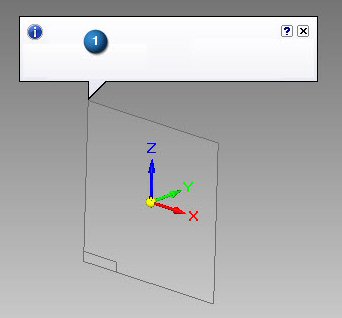
Command tips provide contextual assistance as you work with QY CAD. You can enable them by setting the Show command tips option on the Helpers tab of the QY CAD Options dialog box.
-
-
A description of how to use this reference plane displays in this command tip (1).
© 2021 UDS