Manufacturing settings


To identify requirements for additive manufacturing as well as traditional manufacturing methods, such as casting and milling, use the Generative Design tab→Generate group→Manufacturing Settings command  . This opens the Manufacturing Settings dialog box, where you set manufacturing constraints for material addition and removal during optimization. See below for information regarding these options.
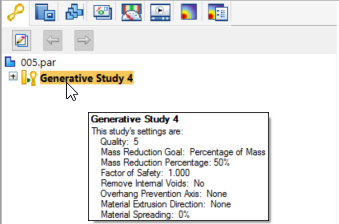
You can quickly see the manufacturing settings that were previously applied to an optimized part when you hover over the study name in the Generative Design pane to see the data tip:
Prevent internal voids
To specify that no empty internal areas are created, select Prevent enclosed void creation. This is important for parts built using a powder bed additive manufacturing method. Interior voids entrap excess material.
In many cases, you can achieve a similar effect using overhang prevention.
Overhang prevention
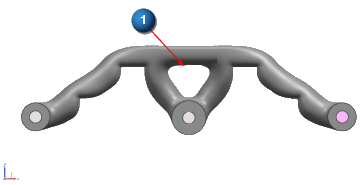
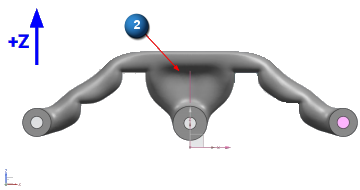
To prevent large regions of material from hanging over voids without sufficient support from the lower structure, select the X, Y, or Z direction from the Overhang prevention axis list.
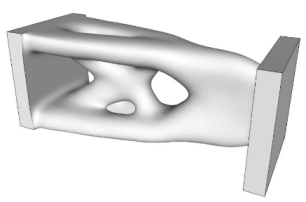
(1) shows a part that was optimized without overhang prevention.
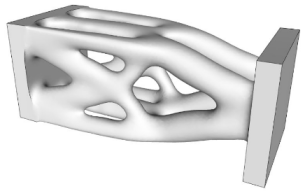
(2) shows the same part with overhang prevention applied in the Z-axis direction.
Material Extrusion
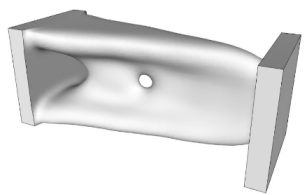
To maintain a constant, cross-sectional thickness during optimization, use the Axis lists to constrain the addition of material to the X, Y, or Z axis, and in which direction vector:
-
Positive (+)
-
Negative (−)
-
Both (±)
Material is extruded in the +Y direction.

Material spreading
To specify how material is distributed (spread) as the part is optimized, adjust the Material Spreading slider.
-
0%—This is the default, which has no effect.
-
30%—Hollows out thick, solid areas, potentially creating voids.
-
60%—Produces thin-walled structures.
-
100%—Produces strut-like structures.
| Material Spreading=30% |
|
| Material Spreading=60% |
|
| Material Spreading=100% |
|
© 2021 UDS