Analyze a structural frame model


-
Open a frame model.
-
Select Tools tab→Environs group→Frame
 .
. This opens the Frame environment.
-
On PathFinder, click the Simulation tab
 to display the Simulation pane.
 -
Use the New Study command and the Create Study (or Modify Study) dialog box to create a study and select the model geometry to analyze.
For a structural frame model, select the Linear Static study type and the Beam mesh type.
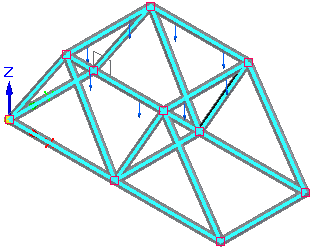
Tip:For practice creating a study of the structural framework model shown above, see Tutorial: Simulate stresses on a bridge.
-
Define boundary conditions.
-
For a structural frame model, you can add the following boundary conditions:
-
Define a node to place supplemental loads and constraints on a structural frame.
Note:Use the Node command to place explicit nodes when you need to place additional loads and constraints along beam members.
-
Define a release to release degrees of freedom on frame joints.
Note:When beam elements are connected, all six degrees of freedom are connected at each beam end. Choose the Release command to specify the degrees of freedom that you do not want to connect.
-
-
For more information about meshing, refer to Meshes.
-
Choose the Simulation tab→Solve group→Solve command to run the simulation.

The Simulation Results environment is displayed.
-
-
Review the beam cross sections and beam diagram by selecting the following check boxes on the Home tab→Show group→Display Options menu:
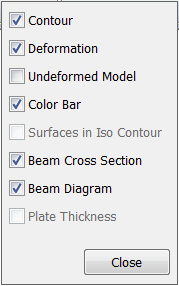
-
Review the beam properties of a cross section.
-
In a structural frame model, beam curves are created from the design body, and the beam curves are meshed into discrete beam elements and beam element nodes.
Use the following finite element analysis process to simulate loading conditions on a frame model and determine its response at various locations on the beam cross section.
© 2021 UDS