Lock an element or keypoint


-
Do one of the following:
-
In a 2D profile sketch, choose Sketching tab→Relate group→Lock
 .
. In draft, the command is located on the Home tab.
-
In a 3D sketch, choose 3D Sketching→3D Relate group→Lock command

-
-
Click an element or keypoint to lock the element and prevent it from being modified.
You can apply a Lock relationship to multiple elements in a single operation. After selecting an element, you can press Shift+Select to add more elements to the set or deselect elements from the set. You can also drag a box around the elements you want to select, and then apply a Lock relationship to them. You can press Shift+drag+select to add more elements to the set.
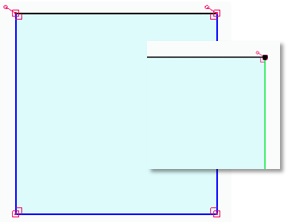
When geometry is locked, it changes to fully constrained (default color=black).
For more information about sketch colors, see Relationship Colors command.
-
Locking a keypoint only locks the position of the sketch keypoint (see inset).
-
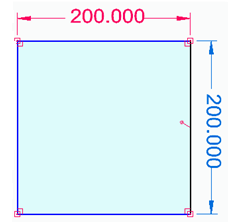
When a sketch element is locked, its dimension changes to a driving dimension (default color=red). For more information, see Locked dimensions
-
A locked keypont can be moved by manipulation commands, and is fixed at the new location after manipulations.
© 2021 UDS